

Route
Breadcrumb: SYSTEM → BRIDGE SETUP
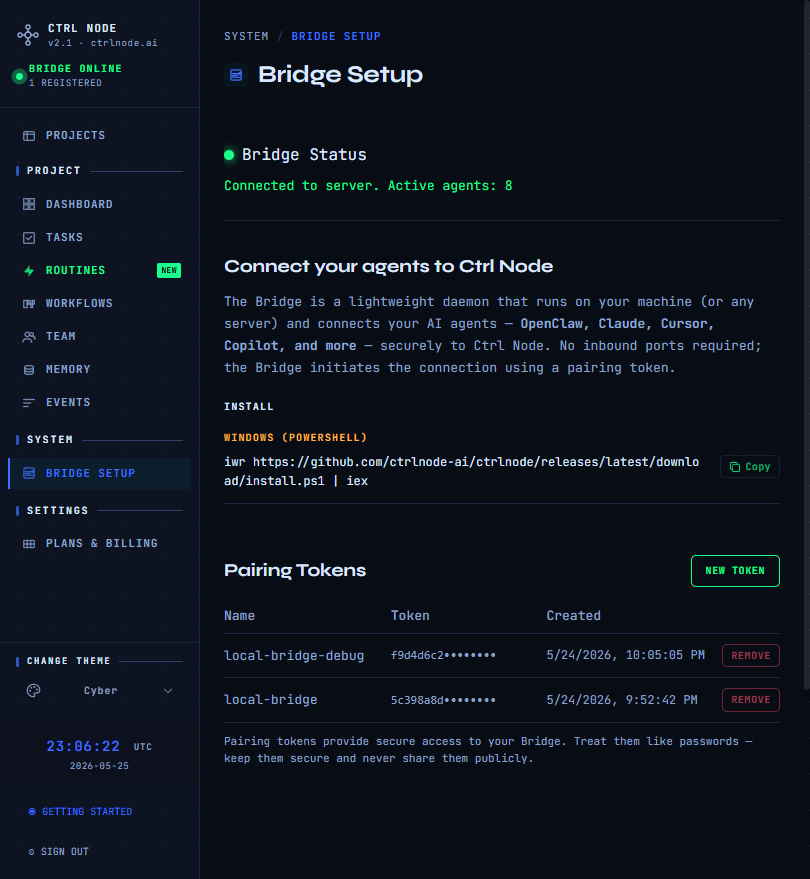
This is the most important step. Without a connected Bridge, agents do not appear in Team and tasks are not dispatched.
Bridge status
Green dot = Connected (shows active agent count). Red = Disconnected — verify the Bridge process is running with a valid token.
Pairing tokens
- Click New Token
- Copy the token when shown — it will not be displayed again
- Revoke old tokens you no longer use
Regenerate from /setup/token during onboarding if needed.
Install
Windows (PowerShell):
iwr https://github.com/ctrlnode-ai/ctrlnode/releases/latest/download/install.ps1 | iex
Linux / macOS:
curl -fsSL https://github.com/ctrlnode-ai/ctrlnode/releases/latest/download/install.sh | bash
Installers write ~/.ctrlnode/.env with PAIRING_TOKEN and workspace paths.
Run
$env:PAIRING_TOKEN="<your-token>"
ctrlnode
PAIRING_TOKEN=<your-token> ctrlnode
Installers write ~/.ctrlnode/.env with PAIRING_TOKEN, SAAS_URL, and BASE_PATH (workspace parent). See Install.
Troubleshooting
| Issue | Check |
|---|
| Stays disconnected | Token copied correctly; Bridge process running |
| Auth errors | No duplicate PAIRING_TOKEN= in .env; shell env not overriding file |
| Agents missing | Bridge connected; agent registered in Team |
Previous: Events · Quickstart